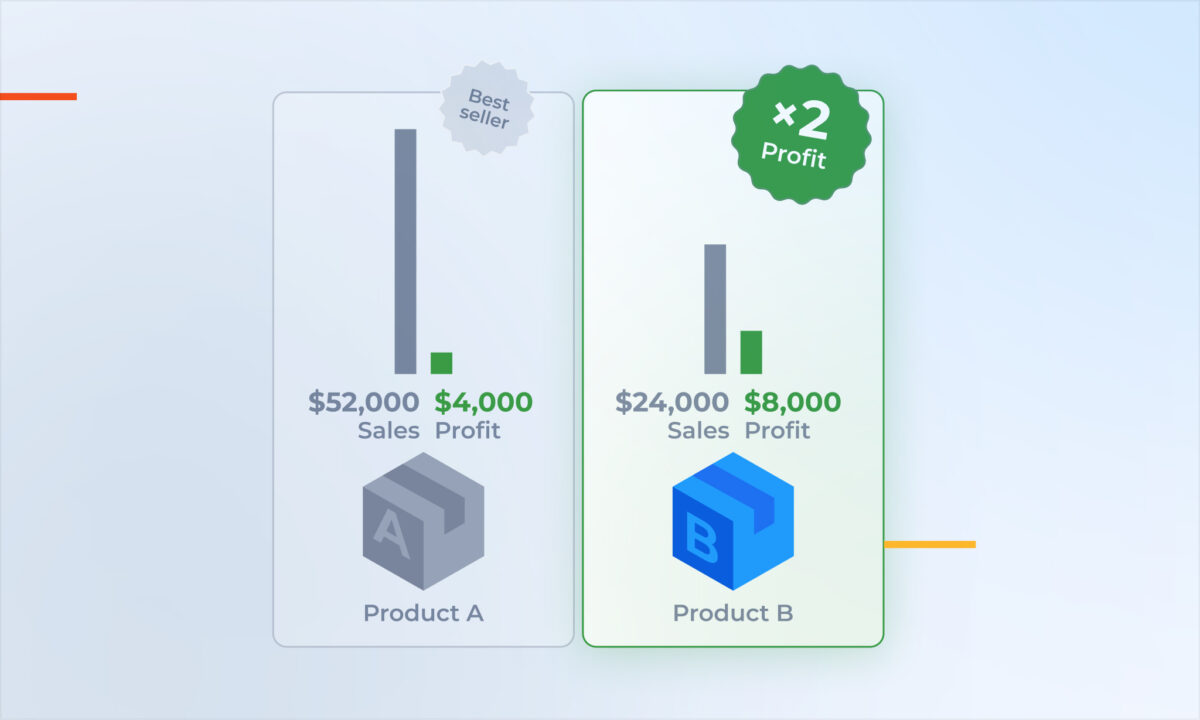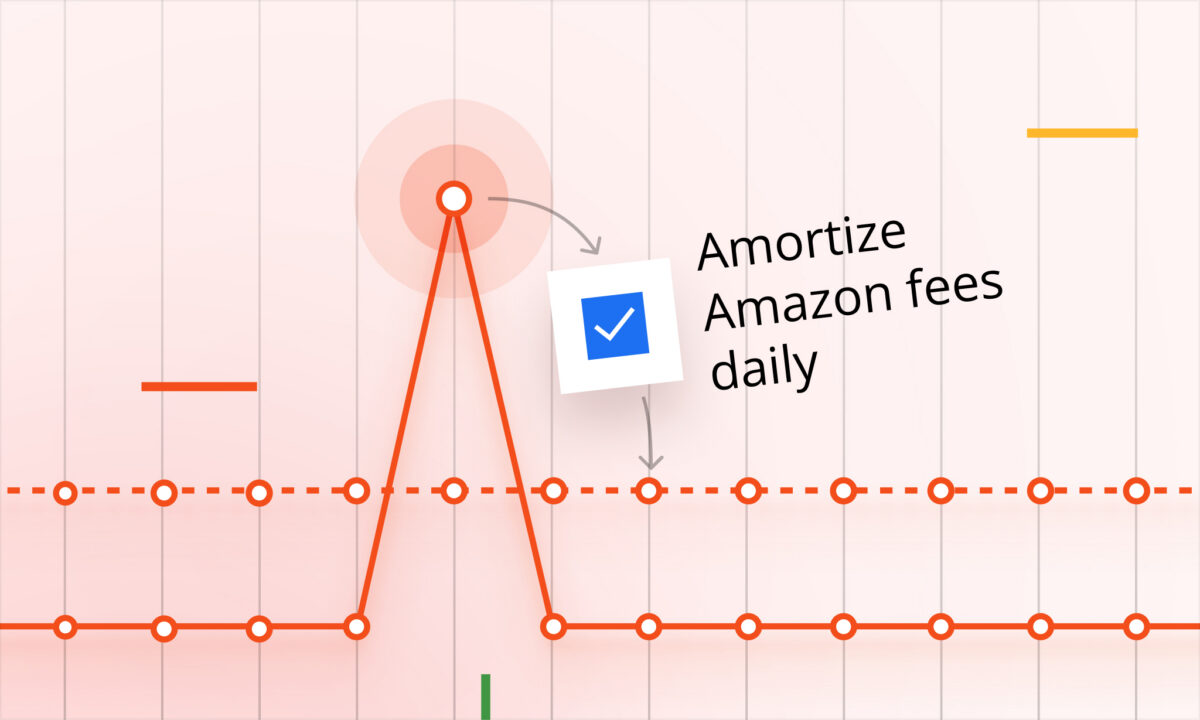
When your daily Amazon profit drops, check whether a large fee landed on that date before changing prices or advertising budgets. Some Amazon charges arrive as a lump sum even though they relate to a longer period of activity. The date a cost appears in your profit report can therefore affect how you read that day’s performance.
Start by identifying the charge and the activity behind it. Then review profit with a consistent approach to fee timing. In sellerboard, the “Amortize Amazon fees daily” setting lets you spread selected supported fee categories across days, making it easier to examine daily results without concentrating the whole charge on one date.
What can a single low profit day tell you
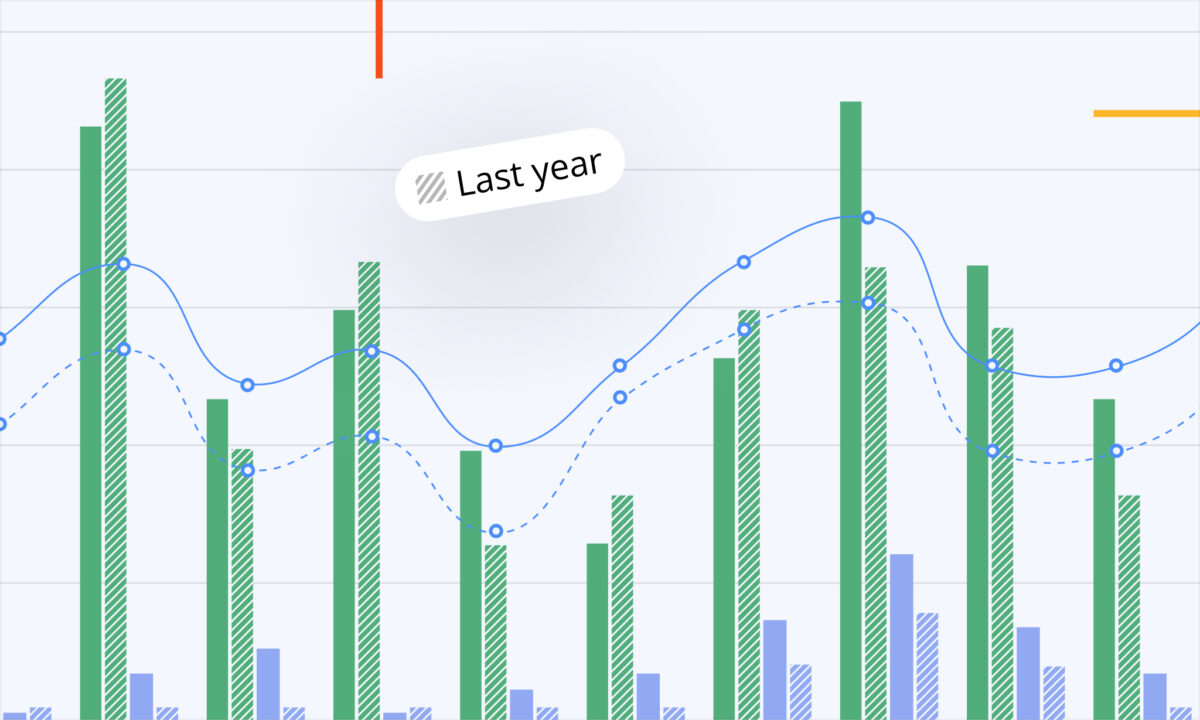
A daily profit figure combines the sales and costs recorded for that date. If a lump-sum fee is included, the figure can fall sharply even when the orders sold that day look similar to the day before. That gives you a reason to investigate the fee, but it does not establish that everything else in the business is unchanged.
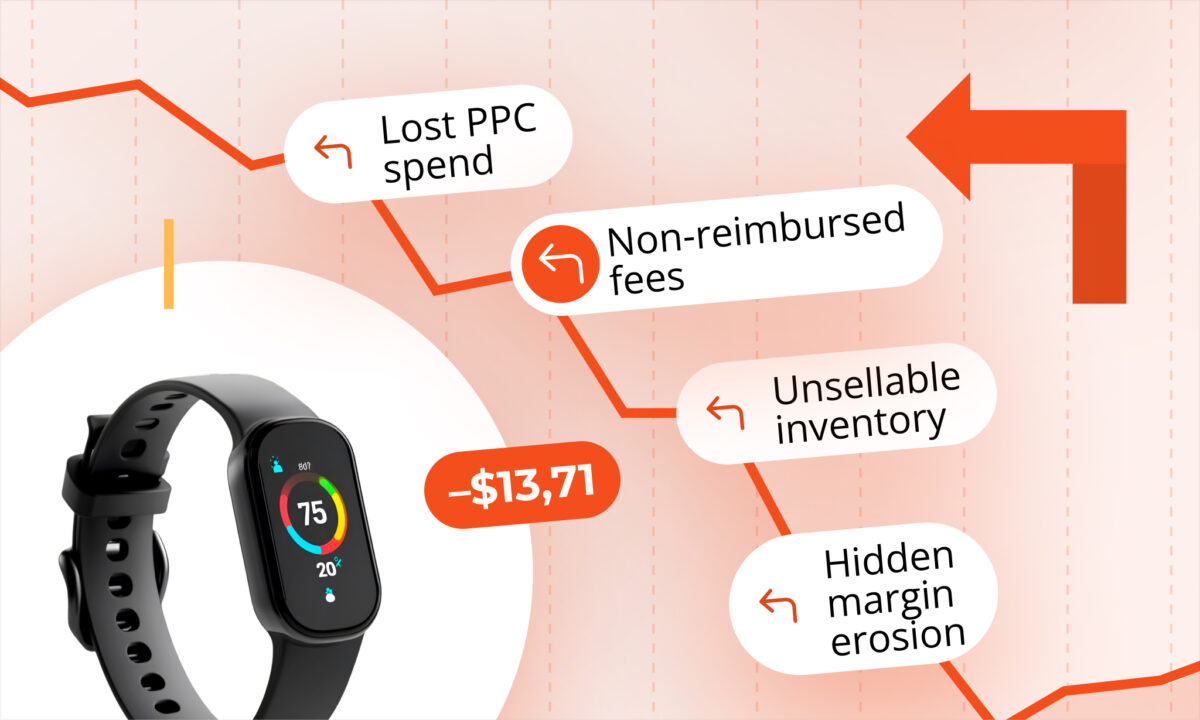
Imagine opening your dashboard and seeing an unusually weak Tuesday. You might immediately question a price change or a campaign that ran that day. Before drawing that connection, check the cost detail. A storage charge, removal fee or inbound transportation charge could explain part of the movement. Lower sales, higher advertising spend, refunds or a different mix of products sold could also contribute.
The useful question is how much of the difference comes from the charge and how much remains after you account for its timing. A fee can explain the shape of a daily chart while still being a real cost that needs attention.
How does daily allocation change the picture
Here is a simplified illustration. Assume a business earns $80 a day before one $300 fee, over a 30-day period. For this example only, compare recording the entire fee on one day with allocating it equally across all 30 days. These are hypothetical figures to explain the arithmetic, not a customer result or a description of sellerboard’s allocation calendar.
| Measure | Whole fee on one day | Equal allocation over 30 days |
|---|---|---|
| Fee recorded on the selected day | $300 | $10 |
| Profit on that day | $80 − $300 = −$220 | $80 − $10 = $70 |
| Profit on each of the other 29 days | $80 | $70 |
| Total profit across all 30 days | $2,100 | $2,100 |
The daily allocation is $300 ÷ 30 = $10. The total is $80 × 30 − $300 = $2,100 in both versions. The large negative day disappears in the second view, while the other days each carry their share of the cost.
That is the important trade-off when reading the report: a more even daily pattern can also mean lower profit on days that previously carried none of the fee. Spreading a cost across days does not make the cost smaller. The two totals above match because the example includes the entire charge and the entire allocation period; a shorter date range need not show the same total.
What should you check before changing a setting
First, note the date, marketplace and products included in the view. Keep that scope consistent while you investigate. Comparing one marketplace on the low-profit day with the whole account on the day before adds another difference before you have explained the first.
Next, find the unusual cost and check its category, amount and posting date. Where needed, use the corresponding Amazon transaction or fee report to understand the charge. Establish whether it relates to activity beyond that single day. Do not assume that every fee, or every drop in profit, is a timing issue.
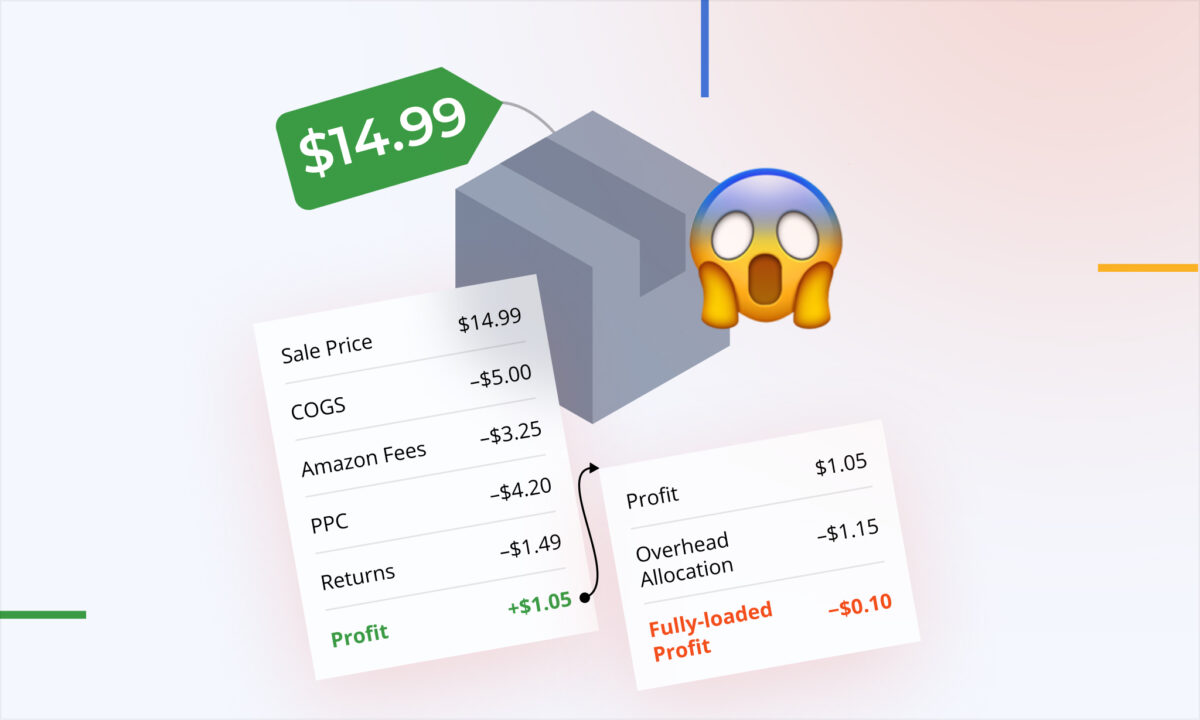
Review the other changes for the same scope. Did sales fall? Did advertising spend rise? Were there more refunds, a lower selling price or a change in purchase costs? If a large fee explains only part of the decline, the remaining difference still deserves a closer look.
Finally, check whether that fee category is already being amortized. Record the setting and start date before you make a change. A before-and-after screenshot is easier to interpret when you know which reporting assumption changed.
How do you use daily Amazon fee amortization in sellerboard
In Settings, find “Amortize Amazon fees daily”. Use the multi-select to choose the supported fee categories you want to amortize, then set the start date. The date defaults to today and can be set up to three months in the past.
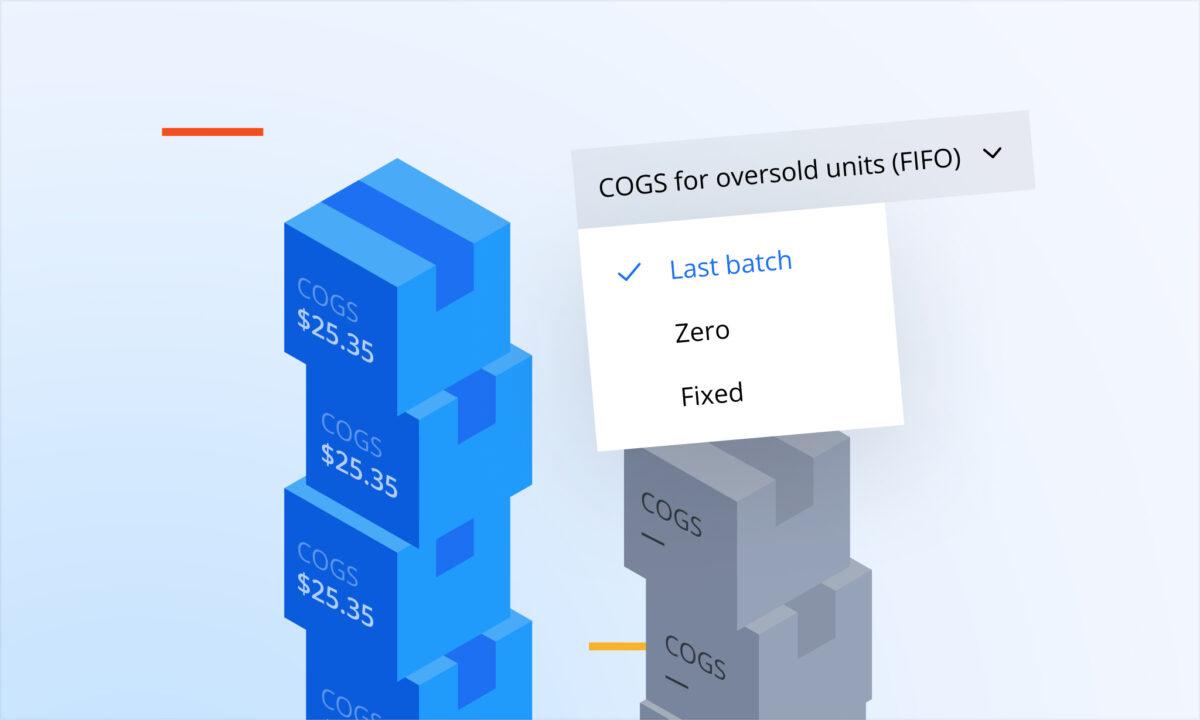
Supported categories include FBA storage, FBA removal and disposal, inbound transportation, and Amazon Warehousing and Distribution (AWD) storage, transportation and processing fees. The selectable list is limited, so check the exact category in your account rather than assuming every Amazon fee is covered.
Choose categories because daily allocation helps you interpret those costs. Then review the affected dates with the same filters you used before. The start date and selected categories matter to the result; do not assume that choosing an earlier date will recalculate every historical charge in the same way.
This setting changes how selected costs are reflected across days in sellerboard’s profit reporting. Keep the underlying Amazon charge in view when you reconcile the result. The feature helps with the timing question; identifying an incorrect charge or an operational problem still requires checking the relevant detail.
How do you turn the review into a useful next step
If the dip is largely explained by a lump-sum fee, review daily profit over a wider period using the chosen fee treatment consistently. Check whether the underlying cost itself is expected. For example, spreading a storage charge across days makes it less concentrated on one date, but a rising storage bill can still be worth investigating.
If profit remains weak across the period, look beyond the original posting day. Focus on the products and costs contributing to the difference. A smoother chart cannot establish that a price is profitable or that an advertising campaign should receive more budget.
If several things changed at once, keep those explanations separate. Write a short note of the fee you identified, the setting you used and what remains unexplained. That gives you a clear starting point for the next review instead of reacting to the same charge twice.
Common mistakes
- Treating one low-profit day as proof that a price or campaign stopped working.
- Assuming daily amortization reduces the amount charged by Amazon.
- Ignoring a growing fee because its daily presentation looks smoother.
- Comparing results with different date ranges, filters or fee settings without noting the change.
- Assuming all Amazon fees are supported or that a start-date change rewrites all historical data.
FAQ
Does a one-day profit dip mean my business performed worse that day?
It may, but the daily figure alone cannot establish that. Check the sales and cost detail, including any lump-sum fees recorded on the date, before deciding what caused the movement.
What does amortization mean here?
It means distributing a cost across days in profit reporting. The full cost remains part of the analysis, even though its effect is spread over time.
Can I choose which Amazon fees are amortized?
Yes. The “Amortize Amazon fees daily” area in Settings has a multi-select for supported categories and a configurable start date. Check the list for the particular charge you are reviewing.
Is a smoother daily profit chart enough to make a pricing or advertising decision?
No. You still need to understand the relevant product or campaign economics and the costs behind the result. Daily amortization helps you interpret when a cost appears; it does not diagnose the business decision for you.
Before acting on a sudden profit dip, identify the charge, understand its timing and review the remaining difference. A useful daily profit view should help you investigate what changed while keeping the full cost visible.